
Google Search Console Tutorials
Read more about this topic
Master Google Search Console step-by-step with our hands-on tutorials designed to turn data into action. From verifying your property and reading the Performance report to fixing indexing issues and optimizing Core Web Vitals, these guides break complex SEO metrics into simple, actionable tasks. Perfect for small business owners, bloggers, and marketers who want to boost organic traffic without guesswork. Learn how to spot high-potential keywords, monitor backlinks, and resolve crawl errors—all while keeping your site aligned with the latest algorithm updates. Practical, clear, and updated for today’s search landscape, these tutorials help you leverage GSC as your free, most powerful SEO ally.
3 articles

Articles in Google Search Console Tutorials

Find Your Best Keywords with Google Search Console: A Hidden Gem for SEO
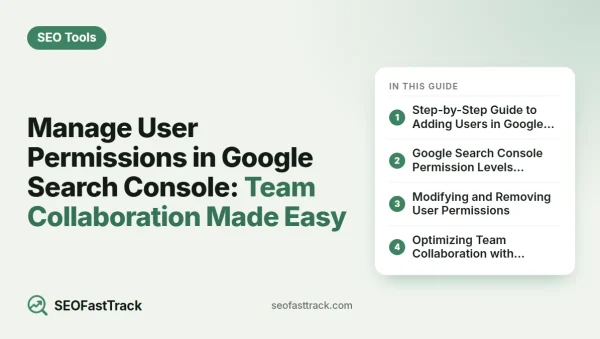
Manage User Permissions in Google Search Console: Team Collaboration Made Easy
Master Google Search Console with In-Depth Tutorials
Welcome to the Google Search Console Tutorials subcategory at SEOFastTrack, your dedicated resource for unlocking the full potential of this free, indispensable SEO tool. Whether you're a small business owner, blogger, or digital marketer, mastering Google Search Console (GSC) is non-negotiable for improving your site’s visibility, diagnosing technical issues, and understanding how Google perceives your content. These tutorials are crafted to turn complex data into actionable steps, helping you drive more organic traffic and make data-backed decisions. From setting up your property to advanced performance analysis, this guide covers every facet of GSC, ensuring you never feel lost in the dashboard again.
🔍 Getting Started: Property Setup & Verification
This first tutorial set walks you through the foundational steps of adding your website to Google Search Console and verifying ownership. You’ll learn the differences between domain and URL-prefix properties, which one suits your needs, and how to choose the best verification method—whether via DNS, HTML file, or Google Analytics. We provide clear, step-by-step instructions with screenshots, ensuring even beginners can complete setup in under 15 minutes. Proper configuration here lays the groundwork for accurate data collection, so you can trust every report you see later.
Beyond basic setup, we’ll discuss how to add multiple users (like your web developer or content writer) with the right permission levels, and how to switch between properties if you manage several sites. You’ll also discover how to integrate GSC with other tools like Google Analytics and Bing Webmaster Tools for a unified view. By the end of this section, you’ll have a fully operational GSC account, ready to start tracking your site’s performance immediately. This isn’t just administrative work; it’s your first step toward data-driven SEO success.
📊 Performance Reports: Decoding Clicks, Impressions & CTR
The Performance report is the heart of Google Search Console. In this tutorial, we break down each metric—clicks, impressions, average click-through rate (CTR), and average position—explaining how they interrelate and what they reveal about your content’s health. You’ll learn how to filter by date range, query, page, country, and device, enabling you to spot trends like mobile dips or seasonal spikes. We’ll show you how to export this data for deeper analysis and create custom date comparisons to measure campaign impact.
Practical examples guide you through identifying winning pages that deserve more internal links, and struggling queries that need improved title tags or meta descriptions. You’ll also discover how to spot “position 5-10” opportunities—queries where a small nudge could push you onto page one. By mastering the Performance report, you’ll transform raw numbers into a prioritization roadmap for your content and optimization efforts. This tutorial ensures no click or impression goes unnoticed, helping you maximize your existing rankings.
🔧 URL Inspection & Indexing: Fix Crawl and Index Issues
Ever wonder why a new blog post isn’t showing up on Google? This tutorial dives deep into the URL Inspection tool, showing you how to test live URLs, request indexing, and understand the “URL is on Google” status. You’ll learn how to diagnose common errors like “Page with redirect,” “Soft 404,” or “Crawled, currently not indexed,” and the exact steps to fix them. We also cover how to use the sitemap feature correctly, ensuring Google finds and prioritizes your important pages.
Additionally, we explain the concept of crawl budget and how to avoid wasting it on duplicate or low-value pages. You’ll see how to monitor index coverage over time and set up email alerts for sudden drops, so you can react before traffic tanks. With hands-on examples, you’ll know precisely when to use “Request Indexing” versus when to wait, and how to leverage the “Inspect” feature for troubleshooting after a site migration or redesign. Say goodbye to invisible pages with this comprehensive indexing guide.
⚡ Core Web Vitals & UX Signals in GSC
Google’s page experience signals are crucial ranking factors, and Google Search Console now offers a dedicated Core Web Vitals report. This tutorial teaches you how to interpret the metrics—Largest Contentful Paint (LCP), First Input Delay (FID), and Cumulative Layout Shift (CLS)—directly within GSC. You’ll learn to identify URLs that are “poor,” “need improvement,” or “good,” and how to prioritize fixes based on impact. We include links to external resources like PageSpeed Insights for deeper diagnostics, but the focus remains on practical GSC navigation.
Beyond Core Web Vitals, we cover the mobile usability report and the new “Enhancements” section, which flags issues like AMP, Breadcrumbs, and Sitelinks Searchbox errors. You’ll understand why a high click-through rate might be suppressed by poor UX and how to align your technical fixes with user experience. This tutorial isn’t just about passing audits; it’s about creating a faster, smoother site that reduces bounce rates and encourages conversions. Use these insights to convince your developer or hosting provider of needed improvements, backed by real GSC data.
🔗 Links, Usability & Advanced GSC Features
Google Search Console isn’t just for technical SEO—it’s a treasure trove for link analysis. In this tutorial, we explore the “Links” report to see your top linked pages, external links, and anchor text distribution. Learn how to spot unnatural link patterns that might lead to manual actions, and how to reinvent your internal linking strategy based on which pages attract the most real weight. We also cover brand-new features like the “Search Console Insights” dashboard for trend analysis and the “Shopping” enhancements if you run an e-commerce site.
Additionally, we delve into security issues and manual actions, showing you how to receive and respond to penalties directly through GSC. You’ll also learn how to use the “Removals” tool for temporary content takedowns and how to set up email notifications for critical errors. These advanced features often go untapped but can save you from significant ranking losses. By mastering these tools, you’ll not only fix current issues but also build a proactive monitoring system that protects your site’s health over the long term.
Frequently Asked Questions
How often should I check Google Search Console?
Check GSC at least once a week for performance trends, and set up email alerts for critical errors or indexing spikes. For larger sites, daily monitoring of Index Coverage is advisable. Regular checks help you catch issues like sudden traffic drops or 404s early, preventing long-term damage.
Can Google Search Console replace Google Analytics?
No, they serve different purposes. GSC focuses on search visibility and technical health, while Analytics tracks user behavior, conversions, and traffic sources. Use both together—GSC for queries and indexing, Analytics for on-site engagement—to get a complete picture of your SEO and marketing performance.
Why is my page “Crawled – currently not indexed” in GSC?
This status often means Google found your page but chose not to index it, likely due to thin content, duplication, low authority, or internal linking issues. Improve the page’s uniqueness, add more substantial content, build high-quality backlinks, and ensure internal links point to it. Then use “Request Indexing” after fixes.
What is the difference between clicks and impressions in GSC?
Clicks are when users actually click on your link in search results, while impressions are how many times your link appears on a search results page (even if not scrolled into view). A high impressions-to-clicks ratio indicates your title and meta description may not be compelling enough, so try revising them.
Does Google Search Console show real-time data?
No, GSC data is aggregated and can be delayed by 24-48 hours for performance reports. URL Inspection and accessibility features reflect near-real-time availability. For live user behavior, use Google Analytics; for search data, expect a one to two-day lag in GSC reports.
Related topics