
Maximize SEO Insights: Customizing Google Analytics for Deeper Analysis

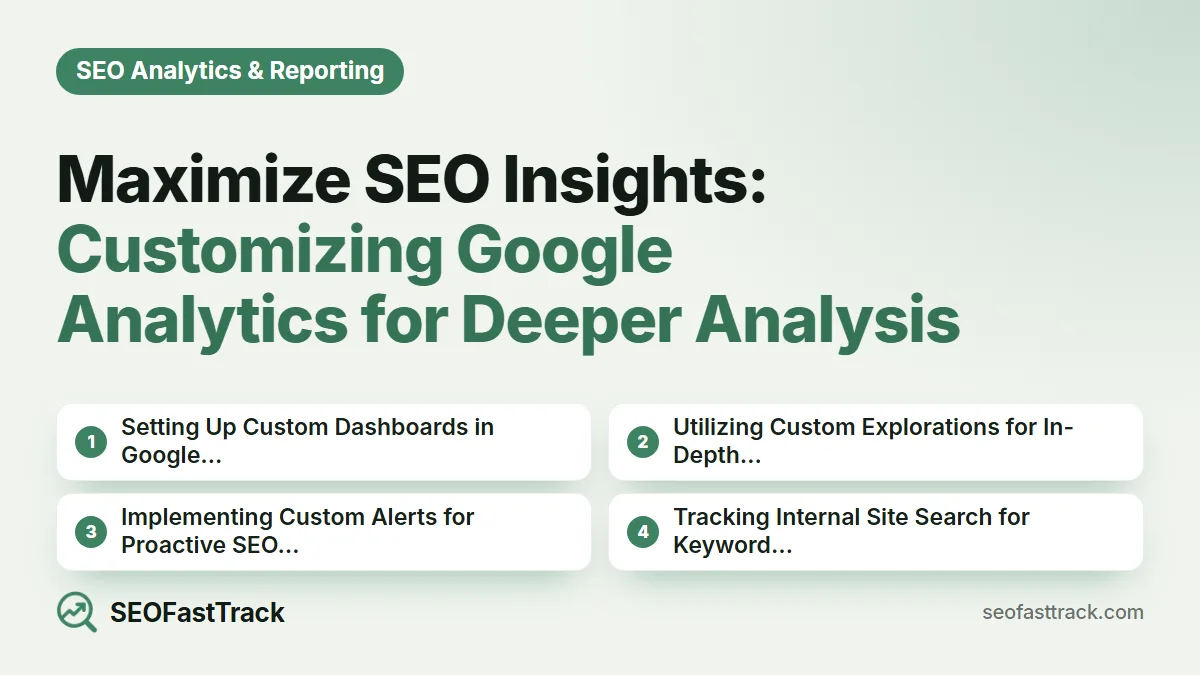
Welcome to SEOFastTrack, your definitive resource for conquering the world of SEO!
Are you ready to unlock the hidden potential within your data and transform your SEO strategy? Dive into our latest guide, "Maximize SEO Insights: Customizing Google Analytics for Deeper Analysis," and discover how to tailor your Google Analytics setup for laser-focused SEO analysis. Uncover the metrics that truly matter, identify areas for improvement, and gain a competitive edge. The journey to data-driven SEO mastery starts here – are you ready to accelerate?
- Maximize SEO Insights: Customizing Google Analytics 4 for Deeper Analysis
- Introduction to Google Analytics 4 for SEO Analysis
- Setting Up Custom Dashboards in Google Analytics 4 for SEO
- Utilizing Custom Explorations for In-Depth SEO Insights
- Implementing Custom Alerts for Proactive SEO Management
- Tracking Internal Site Search for Keyword Opportunities
- Using Custom Audiences to Analyze Specific User Behaviors
- Integrating Google Search Console with Google Analytics 4 for Comprehensive SEO Data
- Setting Up Conversion Tracking for Conversion Optimization
- Leveraging Event Tracking for Deeper Engagement Analysis
- Advanced Customizations: Custom Dimensions and Metrics
- Conclusion: Elevating Your SEO Strategy with Customized Google Analytics 4
-
Frequently Asked Questions
- What is the primary benefit of using Google Analytics for SEO analysis?
- How can I customize Google Analytics to get more SEO-specific data?
- What are some key SEO metrics I should be tracking in Google Analytics?
- How can Google Analytics help me with keyword research and content optimization?
- How can I use Google Analytics to improve my link-building strategy?
- Final Reflection: Unlocking SEO Potential Through Data
- Unlock Your SEO Potential: Dive Deeper Now!
Maximize SEO Insights: Customizing Google Analytics 4 for Deeper Analysis
Introduction to Google Analytics 4 for SEO Analysis
Why Standard Google Analytics 4 Needs Customization for SEO
Google Analytics 4 (GA4) offers a robust foundation for understanding website performance, but its default configuration is designed to cater to a broad range of analytical needs, not specifically SEO. While the standard reports provide a general overview of traffic sources and user behavior, they often lack the granularity required for in-depth search engine optimization analysis.
For instance, default reports may aggregate organic search traffic without clearly distinguishing between branded and non-branded keywords, which is crucial for assessing the effectiveness of SEO campaigns targeting specific topics. Furthermore, out-of-the-box GA4 might not readily highlight key SEO metrics like keyword rankings or landing page performance in the context of organic search, necessitating manual filtering and deeper exploration to extract actionable insights.
This generic approach, while useful for high-level monitoring, falls short when SEO professionals and business owners need to pinpoint specific areas for improvement and measure the impact of their optimization efforts with precision.
The standard GA4 interface, while improved from its predecessor, still presents a learning curve for users seeking SEO-specific data. Navigating through numerous reports and applying multiple filters to isolate relevant information can be time-consuming and inefficient. For example, identifying the landing pages that are driving the most organic traffic and have the highest conversion rates requires several steps within the standard reports.
This complexity hinders quick decision-making and proactive SEO management. To truly leverage Google Analytics 4 for SEO analysis, customization is essential. Tailoring the platform to focus on key SEO performance indicators, create dedicated dashboards, and implement custom explorations allows users to cut through the noise and gain a clearer, more actionable understanding of their website's search engine performance.
The Power of Tailored Analytics for Enhanced SEO Performance
Tailoring Google Analytics 4 for SEO analysis transforms it from a general website analytics tool into a powerful, SEO-centric insights engine. By customizing dashboards, explorations, alerts, and tracking parameters, businesses can unlock a deeper level of understanding regarding their search engine optimization efforts. Imagine being able to instantly visualize the organic traffic contribution to specific landing pages, monitor keyword performance trends at a glance, and receive proactive alerts when crucial SEO metrics deviate from expected patterns. This level of customization empowers SEO professionals to move beyond reactive reporting and embrace a proactive, data-driven approach to optimization.
Enhanced SEO performance through tailored analytics stems from the ability to focus on the metrics that truly matter for search visibility and organic growth. Instead of sifting through generic reports, customized GA4 setups provide immediate access to SEO-specific KPIs. For example, a customized dashboard can display organic traffic trends, conversion rates from organic search, and the performance of key landing pages all in one view.
Custom explorations enable in-depth analysis of keyword performance and content engagement, revealing valuable insights into user behavior and content effectiveness. Furthermore, proactive alerts ensure that SEO teams are immediately notified of critical changes, such as sudden drops in organic traffic or significant shifts in keyword rankings, allowing for swift investigation and mitigation of potential issues. Ultimately, tailored analytics within Google Analytics 4 leads to more informed decision-making, optimized SEO strategies, and demonstrably improved organic search performance.
Setting Up Custom Dashboards in Google Analytics 4 for SEO
Defining Your Key SEO Performance Indicators (KPIs)
Before diving into dashboard creation, it's crucial to define your Key SEO Performance Indicators (KPIs). These are the metrics that directly reflect the success of your SEO efforts and should be prominently displayed on your custom dashboard. For many businesses focused on organic growth, organic traffic volume is a primary KPI. This metric tracks the number of users arriving at your website through organic search results and indicates the overall visibility of your site in search engines.
Another essential KPI is organic conversion rate. This measures the percentage of organic visitors who complete a desired action, such as making a purchase, filling out a form, or subscribing to a newsletter. A high organic conversion rate signifies that your SEO efforts are not only driving traffic but also attracting qualified visitors who are likely to convert.
Beyond traffic and conversions, keyword rankings for target keywords are vital KPIs for many SEO strategies. While GA4 doesn't directly track keyword rankings, you can monitor landing page performance for target keywords to infer ranking improvements. Furthermore, bounce rate for organic traffic and pages per session for organic traffic provide insights into user engagement.
A lower bounce rate and higher pages per session suggest that organic visitors are finding your content relevant and engaging. Finally, if you are running content marketing initiatives, organic traffic to blog posts or specific content categories can be a crucial KPI to track content performance and ROI. By clearly defining these KPIs upfront, you ensure that your custom dashboard is focused and provides the most relevant information for monitoring and improving your SEO strategy.
Creating a Custom Dashboard: A Step-by-Step Guide
Creating a custom dashboard in Google Analytics 4 for SEO is a straightforward process. First, navigate to the "Reports" section in your GA4 property. In the left-hand navigation menu, look for "Library" at the bottom. Click on "Library" to access the report customization interface. Within the Library, you will see two main sections: "Collections" and "Reports". To create a new dashboard, click on "Create new dashboard" (or "Create collection" if you want to group multiple dashboards). Choose "Blank" to start with a fresh dashboard.
Next, you'll be presented with an empty dashboard canvas. To add data visualizations, click on "Add card". A panel will appear on the right side, allowing you to choose the type of card you want to add. For SEO dashboards, essential cards include "Line chart" for tracking trends over time (e.g., organic traffic over the past month), "Bar chart" for comparing metrics across different dimensions (e.g., organic traffic by landing page), "Scorecard" for highlighting key metrics at a glance (e.g., total organic traffic), and "Funnel" for visualizing conversion paths from organic search.
Select the desired card type and then configure it by choosing the relevant metrics and dimensions. For example, for an organic traffic trend line chart, select "Total users" as the metric and "Date" as the dimension, then apply a filter to include only "Organic Search" traffic. Repeat the "Add card" process to populate your dashboard with all your defined SEO KPIs.
You can rearrange and resize cards on the dashboard to create a visually appealing and informative layout. Finally, give your dashboard a descriptive name, such as "SEO Performance Dashboard," and save it. This custom dashboard will now be readily accessible in your GA4 Library, providing a quick overview of your SEO performance whenever you need it.
Essential SEO Cards for Your Google Analytics 4 Dashboard
To maximize the effectiveness of your SEO dashboard in Google Analytics 4, certain cards are essential for providing a comprehensive overview of your search performance. A prominent "Organic Traffic Overview" scorecard should be at the top, displaying key metrics like "Total Users (Organic Search)," "New Users (Organic Search)," and "Sessions (Organic Search)" for the selected date range. This provides an immediate snapshot of your overall organic traffic volume.
Below this, a "Organic Traffic Trend" line chart visualizing "Users (Organic Search)" over time (e.g., the last 30 days or 90 days) is crucial for identifying trends and seasonal patterns. Another vital card is a "Top Landing Pages by Organic Traffic" bar chart. This chart, using "Landing Page" as the dimension and "Users (Organic Search)" as the metric, reveals which pages are most effective at attracting organic visitors.
For conversion tracking, include an "Organic Conversion Rate" scorecard, displaying the conversion rate specifically for organic traffic. Supplement this with a "Top Conversion Landing Pages (Organic)" bar chart, showing landing pages ranked by conversion events from organic search. To understand user engagement, add a "Bounce Rate (Organic)" scorecard and a "Pages per Session (Organic)" scorecard.
Finally, for businesses tracking specific keyword categories or content types, consider adding "Organic Traffic by Content Category" bar charts, using custom dimensions (if set up) or page path segments to categorize content and visualize organic traffic distribution. By incorporating these essential SEO cards, your custom dashboard will provide a powerful and readily digestible overview of your website's search engine performance, enabling data-driven SEO decisions.
Utilizing Custom Explorations for In-Depth SEO Insights
Understanding the Limitations of Default Google Analytics 4 Reports
While Google Analytics 4's default reports offer a starting point for SEO analysis, they have inherent limitations when it comes to deep-dive investigations. Default reports are pre-configured and often aggregate data in ways that are not ideal for granular SEO insights.
For example, the "Traffic Acquisition" report provides a general overview of traffic sources, including "Organic Search," but it doesn't readily break down organic search traffic by specific keywords or landing pages associated with particular search terms. To get this level of detail, you would need to apply secondary dimensions and filters, which can be cumbersome and still might not provide the exact view you need for comprehensive keyword performance analysis.
Furthermore, default reports often lack the flexibility to analyze complex relationships between different SEO metrics. For instance, understanding the correlation between keyword rankings (which are indirectly inferred from landing page performance) and user engagement metrics like bounce rate or session duration requires more than just viewing pre-set reports. Default reports also have sampling limitations, especially for large datasets.
When dealing with high-traffic websites and extensive historical data, GA4 may sample data in default reports to improve processing speed, potentially sacrificing accuracy for in-depth SEO analysis that requires precise numbers. These limitations highlight the need for custom explorations in GA4, which provide a flexible and powerful way to overcome these constraints and conduct truly in-depth SEO analysis.
Building Custom Explorations for Keyword Performance Analysis
Custom explorations in Google Analytics 4 offer a powerful way to dissect keyword performance beyond the limitations of default reports. To analyze keyword performance, start by creating a "Free form" exploration. In the exploration builder, drag "Landing Page" from the Dimensions pane to the "Rows" section. Then, drag metrics like "Users," "Sessions," "Engaged sessions," and "Conversions" to the "Values" section. To focus specifically on organic search traffic, apply a filter. Click on "Filters" and add a filter for "Session source / medium" exactly matching "organic".
Now, to analyze keyword performance, you can indirectly infer keyword effectiveness by examining the landing pages that receive organic traffic and their associated metrics. For example, if you have landing pages optimized for specific keywords, you can analyze the performance of these pages in the exploration. To further refine this, you can add a secondary dimension like "Query" (if you have integrated Google Search Console with GA4 – more on this later).
This will show you the actual search queries that users used to reach those landing pages. By sorting the exploration table by different metrics (e.g., "Users" or "Conversions"), you can identify which landing pages are driving the most organic traffic and conversions.
You can also segment the data further using dimensions like "Device category" or "Country" to understand keyword performance across different user segments. Using custom explorations in this way allows for a much more nuanced and actionable understanding of keyword performance compared to relying solely on default GA4 reports.
Analyzing Landing Page Performance with Custom Explorations
Custom explorations are invaluable for analyzing landing page performance in the context of SEO. To begin, create another "Free form" exploration in GA4. Drag "Landing Page" from the Dimensions pane to the "Rows" section. Then, add essential SEO metrics to the "Values" section, including "Users (Organic Search)," "Sessions (Organic Search)," "Engaged sessions (Organic Search)," "Bounce Rate (Organic Search)," "Average session duration (Organic Search)," and "Conversions (Organic Search)". By focusing on metrics specifically filtered for "Organic Search," you isolate the performance of your landing pages driven by SEO efforts.
This exploration allows you to quickly identify your top-performing and underperforming landing pages in terms of organic traffic and engagement. Sort the table by "Users (Organic Search)" to see which pages are attracting the most organic visitors. Sort by "Conversion Rate (Organic Search)" to pinpoint pages that are effectively converting organic traffic.
Analyze pages with high organic traffic but low conversion rates or high bounce rates. These pages may represent opportunities for optimization. For example, if a landing page receives significant organic traffic but has a high bounce rate, it might indicate that the page content is not fully aligned with user search intent or that the user experience needs improvement.
Conversely, pages with high conversion rates and engagement are examples of successful SEO landing pages that you can learn from and replicate strategies across other pages. Custom explorations provide the flexibility to segment and filter landing page performance data in numerous ways, enabling a thorough and actionable analysis for SEO optimization.
Creating Custom Explorations for Content Engagement Analysis
Understanding how users engage with your content from organic search is crucial for optimizing your SEO strategy. Custom explorations in GA4 can be tailored to analyze content engagement effectively. Start by creating a "Free form" exploration. Drag "Page path and screen class" dimension to the "Rows" section.
This dimension allows you to analyze specific pages or groups of pages (content categories). Add metrics relevant to content engagement to the "Values" section. Key metrics for content engagement include "Engaged sessions," "Engagement rate," "Average engagement time," "Scroll depth," and "Event count" for specific content interactions (e.g., video plays, button clicks – if you have event tracking set up). Apply a filter to include only "Organic Search" traffic to focus on content engagement from SEO efforts.
This exploration reveals which content pieces are most engaging for organic search visitors. Sort the table by "Average engagement time" to identify content that keeps users engaged for longer periods. Analyze "Scroll depth" to understand how far users are scrolling down your pages, indicating content consumption and interest.
If you have implemented event tracking for specific content interactions (e.g., video views, downloads), include these event metrics to understand how users are interacting with interactive elements within your content. By segmenting your content by categories or topics using page path segments as dimensions, you can compare the engagement levels across different content themes and identify content areas that resonate most strongly with organic search audiences. This detailed content engagement analysis using custom explorations empowers you to refine your content strategy, create more engaging content formats, and ultimately improve your SEO performance by satisfying user intent and maximizing content value.
Implementing Custom Alerts for Proactive SEO Management
Identifying Critical SEO Metrics for Alerting
Proactive SEO management relies on timely notifications of significant changes in key performance indicators. Custom alerts in Google Analytics 4 enable you to set up automated notifications for critical SEO metrics, allowing you to respond quickly to potential issues or capitalize on emerging opportunities. Identifying the right SEO metrics for alerting is crucial for effective proactive management. Organic traffic volume is a primary metric to monitor.
A sudden drop in organic traffic could indicate a ranking decline, technical issue, or algorithm update impact. Conversion rate from organic search is another critical metric. A significant decrease in organic conversion rate might signal problems with landing page relevance, user experience, or changes in search intent.
Beyond traffic and conversions, keyword ranking fluctuations (indirectly monitored) are important to track. While GA4 doesn't directly provide keyword rankings, monitoring organic traffic to key landing pages associated with target keywords can serve as an indicator. A sudden drop in organic traffic to a page targeting a specific keyword could suggest a ranking decline for that keyword. Bounce rate for organic traffic is also a valuable metric for alerting.
A sudden spike in bounce rate might indicate issues with page load speed, content relevance, or user experience. Finally, if you are tracking specific SEO goals, such as form submissions or lead generation, goal completion rate from organic search should be monitored via alerts. By carefully selecting these critical SEO metrics, you can configure custom alerts to provide timely warnings of important performance shifts, enabling proactive investigation and optimization.
Setting Up Custom Alerts for Traffic Anomalies
Setting up custom alerts for traffic anomalies in Google Analytics 4 is a straightforward process that can significantly enhance your proactive SEO management. To create an alert, navigate to "Admin" in your GA4 property and then select "Custom alerts" under the "Property" column. Click on "Create new alert". Give your alert a descriptive name, such as "Sudden Drop in Organic Traffic".
In the "Conditions" section, select "Metrics" and choose "Users". Set the condition to "is less than" and then choose a percentage decrease compared to the previous period. For instance, you might set a condition like "is less than 20% compared to the same day in the previous week". This means you'll be alerted if your organic traffic drops by more than 20% compared to the same day last week, accounting for day-of-week traffic patterns.
Next, under "Dimensions", add a filter to specify "Traffic source" as "Organic Search". Choose the frequency of the alert, such as "Daily" or "Weekly," depending on how frequently you want to be notified. Select the delivery method for the alert, typically email. You can also customize who receives the alert notifications.
For a traffic drop alert, it's beneficial to receive immediate daily notifications to quickly identify and address potential issues. You can create similar traffic anomaly alerts for other important traffic metrics, such as "Sessions" or "New Users," and adjust the percentage threshold and comparison period based on your specific traffic patterns and sensitivity to fluctuations. By setting up these traffic anomaly alerts, you can proactively identify and respond to unexpected drops in organic traffic, minimizing potential negative impacts on your SEO performance.
Configuring Alerts for Conversion Rate Changes
Monitoring conversion rate changes is crucial for ensuring your SEO efforts are not only driving traffic but also generating desired outcomes. Setting up custom alerts for conversion rate fluctuations in Google Analytics 4 allows you to proactively address potential conversion issues. To create a conversion rate alert, navigate to "Admin" Custom alerts
and click "Create new alert". Name your alert, for example, "Significant Conversion Rate Drop (Organic)". In the "Conditions" section, select "Metrics" and choose the specific conversion event you are tracking (e.g., "Leads," "Purchases"). Set the condition to "is less than" and define a percentage decrease relative to the previous period. For example, you might set "is less than 15% compared to the same day in the previous week" for a daily alert, or "is less than 25% compared to the previous week" for a weekly alert.
Under "Dimensions", apply a filter to specify "Traffic source" as "Organic Search" to focus on organic conversion rate. Choose the alert frequency (e.g., "Daily" or "Weekly") and delivery method (e.g., email). You can also configure alerts for conversion rate increases. For instance, you might set an alert for "Conversion Rate Increase (Organic)" with the condition "is greater than 20% compared to the same day in the previous week".
This can help you identify successful SEO initiatives or content pieces that are driving higher conversion rates, allowing you to analyze and replicate those strategies. Adjust the percentage thresholds and comparison periods based on your typical conversion rate variability and desired sensitivity to changes. By implementing conversion rate alerts, you can proactively monitor the effectiveness of your SEO efforts in driving conversions and quickly investigate and resolve any issues that might be negatively impacting your conversion performance.
Using Alerts to Monitor Organic Search Performance
Custom alerts in Google Analytics 4 are not just for detecting negative changes; they are powerful tools for comprehensively monitoring organic search performance and proactively managing your SEO strategy. Beyond traffic and conversion rate anomalies, alerts can be used to track other critical aspects of organic search performance. For example, you can set up alerts to monitor bounce rate spikes for organic traffic.
An alert triggered by a sudden increase in organic bounce rate could indicate issues with page load speed, content relevance, or user experience that require immediate attention. You can also create alerts for significant changes in average session duration from organic search. A decrease in average session duration might suggest declining content engagement, while an increase could signal improved content quality or user experience.
Furthermore, if you are targeting specific geographic locations or device categories for your SEO efforts, you can create alerts segmented by these dimensions. For instance, you might set up an alert for "Organic Traffic Drop in [Target City/Region]" or "Mobile Organic Traffic Decline". This allows you to monitor localized SEO performance and device-specific trends.
By strategically implementing a range of custom alerts covering traffic volume, conversion rates, engagement metrics, and segmented performance, you create a robust proactive monitoring system for your organic search performance. This system enables you to quickly identify and address issues, capitalize on positive trends, and continuously optimize your SEO strategy based on real-time performance data.
Tracking Internal Site Search for Keyword Opportunities
Why Internal Site Search Matters for SEO
Internal site search, often overlooked in SEO analysis, provides a goldmine of insights into user intent and keyword opportunities. When users utilize your website's search bar, they are explicitly stating what information they are looking for but cannot readily find through navigation or browsing. These search queries reveal valuable information about user needs, content gaps, and potential keyword opportunities that can significantly enhance your SEO strategy. Analyzing internal site search data can uncover keywords that your target audience is actively using when interacting with your website, indicating high relevance and potential for driving organic traffic.
For example, if users frequently search for "best running shoes for flat feet" on your sports equipment website, this signals a strong user interest in this specific product category and keyword phrase. This insight can inform your keyword research, content creation, and on-page optimization efforts. You might consider creating dedicated content targeting "best running shoes for flat feet," optimizing product pages for this keyword, and incorporating it into your overall SEO strategy.
Furthermore, analyzing internal site search queries can reveal content gaps on your website. If users are consistently searching for topics or products that you don't currently offer or cover comprehensively, this identifies opportunities to expand your content and product offerings to better meet user needs and capture additional organic search traffic. Ignoring internal site search data means missing out on valuable, user-generated keyword insights that can directly inform and improve your SEO strategy.
Setting Up Enhanced Measurement for Internal Site Search Tracking in Google Analytics 4
Google Analytics 4 simplifies the process of tracking internal site search through Enhanced Measurement. By default, GA4 automatically captures site search events if it detects common query parameters in your website's URL structure. However, to ensure accurate and comprehensive tracking, it's crucial to verify and potentially customize the Enhanced Measurement settings for site search. To access these settings, navigate to "Admin" in your GA4 property, then select "Data Streams" under the "Property" column. Click on your web data stream. Under "Enhanced measurement," ensure that the "Site search" toggle is enabled.
Click on the gear icon next to "Site search" to configure the settings. GA4 attempts to automatically detect query parameters (e.g., "q," "s," "query," "search") used in your site search URLs. Verify that GA4 has correctly identified the query parameters used by your website's internal search. If necessary, you can add or remove query parameters to ensure accurate tracking.
For websites with more complex URL structures or less common query parameters, manual configuration might be required. You can also enable "Search term as parameter" if your site search results pages include the search term directly in the URL path. Once you have verified and configured the Enhanced Measurement settings for site search, GA4 will automatically start collecting data on internal site search queries. This data will be available in various GA4 reports and explorations, allowing you to analyze user search behavior and identify valuable keyword opportunities.
Analyzing Search Queries to Identify Content Gaps
Analyzing internal site search queries in Google Analytics 4 is key to uncovering content gaps and identifying opportunities to expand your website's content offerings. To access site search data, navigate to "Reports" and then "Engagement" Site search
Search terms
. This report displays a list of search queries that users entered into your website's internal search bar, along with metrics like "Total Searches," "Sessions with Search," and "Search Exits". Examine the "Search terms" report to identify frequently searched queries. Pay particular attention to queries with a high "Search Exits" rate. A high search exit rate suggests that users are not finding what they are looking for after performing a search, indicating a potential content gap.
Drill down into specific search terms to understand user intent. For example, if you see a high volume of searches for "how to fix a leaky faucet" on your plumbing services website and a high search exit rate for this term, it indicates a strong user need for content related to faucet repair that your website is not adequately addressing.
This presents a clear content gap and an opportunity to create blog posts, articles, or videos explaining how to fix leaky faucets. Similarly, analyze search queries related to products or services you offer.
If users are searching for specific product features or variations that are not prominently featured on your product pages, this suggests opportunities to enhance your product descriptions or create dedicated content addressing these user needs. By systematically analyzing internal site search queries, particularly those with high search exit rates, you can identify content gaps, prioritize content creation efforts, and better align your website content with user search intent.
Leveraging Internal Search Data for Keyword Research
Internal site search data is a valuable, often underutilized resource for keyword research. The search queries users enter on your website represent real-time expressions of their information needs and interests directly related to your niche and offerings. These queries can provide highly relevant and targeted keyword ideas that can inform your SEO strategy and content creation efforts.
To leverage internal search data for keyword research, start by exporting the "Search terms" report from Google Analytics 4. Analyze the list of search queries, focusing on high-volume queries and queries with high search exit rates, as these represent areas of strong user interest and potential content gaps.
Group similar search queries into thematic clusters. For example, if you see multiple variations of searches related to "best coffee beans," "types of coffee beans," and "coffee bean origins," these can be grouped under a broader keyword theme of "coffee beans." For each keyword cluster, assess the search volume and competition using keyword research tools like Google Keyword Planner, SEMrush, or Ahrefs.
Prioritize keywords with a combination of decent search volume and manageable competition. Use the insights from internal site search data to refine your keyword targeting. Internal search queries often reveal long-tail keywords and specific user intents that might be missed in broader keyword research.
For example, instead of just targeting "coffee beans," internal search data might reveal a strong interest in "best organic fair trade coffee beans for French press," providing a more specific and valuable long-tail keyword target. Incorporate these keyword insights into your content strategy, on-page optimization, and overall SEO efforts to create content that directly addresses user needs and captures relevant organic traffic.
Using Custom Audiences to Analyze Specific User Behaviors
Understanding the Power of Segmentation in SEO Analysis
Segmentation is a cornerstone of effective SEO analysis, allowing you to dissect your website traffic and user behavior into meaningful groups for deeper insights. Custom audiences in Google Analytics 4 provide a powerful mechanism for creating and analyzing these segments, enabling you to understand how different user groups interact with your website and how your SEO efforts impact them uniquely.
By segmenting your audience, you can move beyond aggregate data and uncover nuanced patterns and trends that are hidden within overall metrics. For example, analyzing the behavior of mobile users separately from desktop users can reveal device-specific SEO performance issues or optimization opportunities.
Segmentation allows you to tailor your SEO strategies to specific user groups. Understanding the behavior of users from different geographic locations, for instance, can inform your local SEO strategy and content localization efforts. Segmenting users based on their acquisition channel (e.g., organic search, social media, referral) allows you to evaluate the effectiveness of different marketing channels and optimize your SEO investments accordingly.
Furthermore, segmenting users based on their engagement levels (e.g., engaged users vs. non-engaged users) can help you identify content that resonates most strongly with your target audience and optimize your content strategy for increased engagement. Custom audiences in GA4 empower you to create highly specific user segments based on a wide range of criteria, unlocking a deeper level of understanding and enabling more targeted and effective SEO optimization.
Creating Audiences for Mobile Traffic Analysis
Analyzing mobile traffic separately is crucial in today's mobile-first world. Custom audiences in Google Analytics 4 make it easy to create segments specifically for mobile traffic analysis. To create a mobile traffic audience, navigate to "Admin" Audiences
and click "New audience". Choose "Create a custom audience". Give your audience a descriptive name, such as "Mobile Traffic Audience". In the audience builder, under "Include users when," click "Add condition". Select the dimension "Device category" and set the condition to "exactly matches" "mobile".
Optionally, you can further refine your mobile traffic audience by adding additional conditions. For example, you might want to analyze mobile organic traffic specifically. In this case, add another condition for "Session source / medium" exactly matching "organic".
Once you have defined your mobile traffic audience, save it. Now, you can apply this audience segment to any report or exploration in Google Analytics 4 to analyze the behavior of mobile users. For instance, you can use explorations to compare the conversion rates, bounce rates, and engagement metrics of mobile organic traffic versus desktop organic traffic.
You can also create custom dashboards specifically for mobile SEO performance, using the mobile traffic audience segment to filter the dashboard data. Analyzing mobile traffic separately allows you to identify device-specific SEO issues, optimize your website for mobile users, and ensure a seamless mobile user experience, which is critical for ranking well in mobile search results.
Segmenting Users by Geographic Location for Local SEO
For businesses targeting specific geographic areas, segmenting users by location is essential for effective local SEO analysis. Custom audiences in Google Analytics 4 facilitate the creation of location-based segments, enabling you to analyze the performance of your local SEO efforts. To create an audience segment for a specific geographic location, navigate to "Admin" Audiences
and click "New audience". Choose "Create a custom audience". Name your audience appropriately, such as "[City Name] Traffic Audience" or "[Region Name] Traffic Audience". In the audience builder, under "Include users when," click "Add condition". Select the dimension "Country" and set the condition to "exactly matches" and then enter the target country (e.g., "United States"). To target a specific city or region within a country, you can use the "City" or "Region" dimension instead of "Country".
You can further refine your location-based audience by combining location criteria. For example, to target users in a specific city within a specific state, you can add conditions for both "City" and "Region". Once you have defined your location-based audience, save it. Now, you can apply this audience segment to GA4 reports and explorations to analyze the behavior of users from your target geographic area.
For local SEO analysis, focus on metrics like organic traffic from your target location, conversion rates from local organic traffic, and engagement metrics for location-specific landing pages. You can compare the performance of your website in different geographic areas to identify areas where your local SEO efforts are most effective and areas that require improvement. Location-based segmentation allows you to tailor your SEO strategy to specific geographic targets and optimize your website for local search visibility.
Analyzing Returning vs. New Visitors for Content Optimization
Understanding the behavior of returning visitors versus new visitors is valuable for content optimization and SEO strategy refinement. Custom audiences in Google Analytics 4 enable you to segment users based on their visitor type, allowing you to analyze the differences in their engagement and conversion patterns. To create audiences for new and returning visitors, navigate to "Admin" Audiences
and click "New audience". Create two separate audiences: one for "New Visitors" and another for "Returning Visitors".
For the "New Visitors" audience, choose "Create a custom audience". Name it "New Visitors Audience". In the audience builder, under "Include users when," click "Add condition". Select the dimension "New vs returning" and set the condition to "exactly matches" "New". Save this audience. For the "Returning Visitors" audience, repeat the process, but set the condition for "New vs returning" to "exactly matches" "Returning". Name this audience "Returning Visitors Audience" and save it.
Now, you can apply these audiences to GA4 reports and explorations to compare the behavior of new and returning visitors. Analyze metrics like pages per session, average session duration, conversion rates, and bounce rates for each audience segment. Understanding how returning visitors engage with your content differently from new visitors can inform your content strategy. For example, if returning visitors have higher conversion rates and engagement, it suggests that your content is effective at nurturing leads and building relationships.
You can then focus on creating more content designed to encourage repeat visits and engagement. Conversely, if new visitors have high bounce rates, it might indicate that your landing pages are not effectively capturing their attention or aligning with their search intent. Analyzing new vs. returning visitor behavior helps you optimize your content for both acquisition and retention, contributing to a more comprehensive and effective SEO strategy.
Integrating Google Search Console with Google Analytics 4 for Comprehensive SEO Data
Connecting Google Search Console to Google Analytics 4
Integrating Google Search Console (GSC) with Google Analytics 4 (GA4) unlocks a wealth of valuable SEO data directly within your GA4 interface, providing a more comprehensive view of your search performance. Connecting these two platforms is a straightforward process. First, ensure you have administrative access to both your Google Analytics 4 property and your Google Search Console property. In Google Analytics 4, navigate to "Admin" and then select "Search Console Links" under the "Property" column. Click on "Link".
If your Search Console property is already associated with your Google account and is verified, it should appear as an option to link. Select your desired Search Console property and click "Confirm web site". Then, click "Next" and "Submit". If your Search Console property is not listed, ensure that you have added and verified your website in Google Search Console. Once the linking process is complete, data from Google Search Console will begin to flow into your Google Analytics 4 property. This integration typically takes a few hours to activate fully. After successful integration, you will see new Search Console reports within your GA4 "Reports" section, under "Acquisition" Search Console
. These reports provide valuable insights into search queries, landing page performance in search results, and technical SEO issues, all directly within your GA4 environment.
Analyzing Search Queries and Landing Pages from Search Console Within Google Analytics 4
Once Google Search Console is linked with Google Analytics 4, you gain access to valuable Search Console reports directly within GA4, enabling deeper SEO analysis. Navigate to "Reports" Acquisition
Search Console
in GA4. The "Search queries" report shows the actual search queries for which your website appeared in Google search results, along with metrics like "Impressions," "Clicks," "CTR (Click-Through Rate)," and "Average position." This report provides direct keyword performance data, complementing the indirect keyword insights derived from landing page analysis in GA4 explorations.
Analyze the "Search queries" report to identify high-impression, low-CTR queries. These queries represent potential opportunities to improve your page titles and meta descriptions to increase click-through rates and drive more organic traffic. Identify high-impression, low-position queries.
These keywords indicate areas where your content is ranking but not in top positions. Optimize your content and on-page SEO to improve rankings for these keywords. The "Landing pages" report in the Search Console section of GA4 shows the landing pages from your website that appeared in Google search results, along with the same metrics as the "Search queries" report (Impressions, Clicks, CTR, Average position).
Analyze the "Landing pages" report to identify underperforming landing pages. Pages with low CTRs or low average positions may require content optimization, improved page speed, or better mobile-friendliness to improve search performance. By leveraging these Search Console reports within GA4, you can gain a more complete picture of your keyword and landing page performance in search results, enabling data-driven SEO optimization.
Identifying Technical SEO Issues Using Search Console Data
Google Search Console is an invaluable tool for identifying technical SEO issues, and integrating it with Google Analytics 4 allows you to seamlessly access and analyze this data within your GA4 workflow. While GA4 itself doesn't directly report technical SEO issues, the Search Console integration provides access to Search Console's "Coverage" report and "Mobile Usability" report within GA4, under "Acquisition" Search Console
. The "Coverage" report within Search Console (accessible through GA4 integration) highlights indexing issues, such as pages with errors, pages with warnings, valid pages, and excluded pages. Analyze this report to identify and fix technical issues that prevent Google from properly indexing your website. Errors, such as server errors (5xx) or redirect errors, should be prioritized for immediate resolution as they can significantly hinder indexing and search visibility.
Warnings indicate potential issues that might not prevent indexing but could negatively impact SEO performance. Address warnings related to crawl anomalies or canonicalization issues. The "Mobile Usability" report within Search Console (accessible through GA4) identifies mobile usability issues on your website, such as content wider than screen, text too small to read, or clickable elements too close together.
Mobile usability is a critical ranking factor, and resolving these issues is essential for mobile SEO performance. By regularly monitoring the "Coverage" and "Mobile Usability" reports within GA4 (via Search Console integration), you can proactively identify and address technical SEO problems, ensuring that your website is technically sound and optimized for search engine crawling and indexing.
Improving Organic Traffic with Search Console Insights
Integrating Google Search Console with Google Analytics 4 provides actionable insights that can directly lead to improvements in your organic traffic. By analyzing the combined data from both platforms, you can identify specific areas for SEO optimization and track the impact of your efforts on organic traffic growth. Use the Search Console "Search queries" report within GA4 to identify keyword opportunities. Focus on queries with high impressions but low clicks or low average positions.
For low-CTR queries, optimize page titles and meta descriptions to be more compelling and relevant to user search intent, aiming to increase click-through rates and drive more traffic for existing rankings. For low-position queries, identify content gaps and optimization opportunities on the associated landing pages. Enhance content relevance, improve on-page SEO elements, and build relevant backlinks to improve rankings and capture more traffic for these keywords.
Analyze the Search Console "Landing pages" report within GA4 to identify underperforming landing pages. Pages with low organic traffic, low CTRs, or low average positions represent optimization opportunities. Improve the content, user experience, and on-page SEO of these pages to boost their search performance and drive more organic traffic. Use Search Console's technical SEO reports (Coverage and Mobile Usability) accessible within GA4 to fix technical issues that hinder indexing and search visibility.
Addressing technical errors and mobile usability problems ensures that your website is crawlable, indexable, and mobile-friendly, contributing to improved rankings and organic traffic. Continuously monitor your organic traffic trends in GA4 after implementing SEO optimizations based on Search Console insights. Track the impact of your efforts on keyword rankings, click-through rates, and overall organic traffic growth to measure the ROI of your SEO initiatives.
Setting Up Conversion Tracking for Conversion Optimization
Defining Your SEO Goals and Conversion Events
Before setting up conversion tracking in Google Analytics 4 for SEO, it's crucial to clearly define your SEO goals and identify the specific conversion events that align with these goals. SEO goals are the desired outcomes you want to achieve through your search engine optimization efforts. These goals typically revolve around driving valuable actions from organic traffic that contribute to your business objectives. Common SEO goals include generating leads, driving sales, increasing brand awareness, and building audience engagement. Once your overarching SEO goals are defined, you need to identify specific conversion events that represent progress towards these goals.
For lead generation, conversion events might include form submissions (e.g., contact form, request a quote form), newsletter sign-ups, or ebook downloads. For e-commerce businesses focused on sales, primary conversion events are typically purchases or transactions. For businesses aiming to increase brand awareness or engagement, conversion events might include visiting key pages (e.g., product pages, about us page), watching videos, downloading resources, or social media shares.
It's important to choose conversion events that are measurable and directly attributable to your SEO efforts. For example, if your SEO goal is lead generation, tracking form submissions from organic search traffic is a relevant and measurable conversion event. Clearly defining your SEO goals and corresponding conversion events provides the foundation for setting up effective conversion tracking in GA4 and accurately measuring the ROI of your SEO strategy.
Configuring Conversion Tracking in Google Analytics 4
Configuring conversion tracking in Google Analytics 4 involves defining conversion events based on user interactions on your website. GA4 offers several methods for setting up conversions, including using automatically collected events, creating custom events, and marking existing events as conversions. For many common SEO conversion goals, you can leverage automatically collected events or easily configure existing events as conversions. For example, if you want to track form submissions as conversions, and your form submission thank-you page URLs are distinct (e.g., "/thank-you-form-submission"), you can configure a "page_view" event as a conversion. Navigate to "Admin" Conversions
and click "Create conversion event". Choose "Create" and enter the event name (e.g., "form_submission"). Under "Event name equals," enter "page_view" and add a parameter filter for "page_location" containing your thank-you page URL segment (e.g., "/thank-you-form-submission").
For tracking button clicks or link clicks as conversions, you can use Enhanced Measurement's "outbound_click" event if you are tracking outbound clicks as conversions. Alternatively, you can set up custom events using Google Tag Manager (GTM) for more complex conversion tracking scenarios, such as tracking specific button clicks, video views, or file downloads. Once you have defined your conversion events, mark them as conversions in GA4 by navigating to "Admin" Conversions
and clicking "Create conversion event". Select the event name you defined (either automatically collected, existing, or custom events) and click "Mark as conversion". GA4 will now start tracking these events as conversions, and you can analyze conversion data in various reports and explorations, segmented by traffic sources like organic search. Accurate conversion tracking is essential for measuring the success of your SEO efforts and optimizing your strategy for improved ROI.
Analyzing Conversion Rates to Improve SEO Strategy
Analyzing conversion rates from organic search traffic in Google Analytics 4 is crucial for optimizing your SEO strategy and maximizing ROI. Conversion rate data provides insights into the effectiveness of your SEO efforts in driving valuable actions from organic visitors. To analyze conversion rates, navigate to reports like "Acquisition overview" or "Traffic acquisition" in GA4.
Customize these reports to display conversion metrics alongside traffic metrics. Focus on the "Conversions" metric and calculate the "Conversion rate" (Conversions / Sessions) specifically for "Organic Search" traffic. Compare conversion rates across different landing pages, keyword themes, and content types to identify high-performing and underperforming areas.
Landing pages with high organic traffic but low conversion rates represent optimization opportunities. Analyze these pages to identify potential issues with user experience, content relevance, or call-to-actions. Optimize these pages to improve conversion rates by enhancing content clarity, improving page design, and making call-to-actions more prominent and compelling. Compare conversion rates for different keyword themes. If certain keyword themes are driving significantly higher conversion rates than others, prioritize SEO efforts and content creation around these high-converting keywords. Analyze conversion rates for different content types (e.g., blog posts, product pages, service pages). Identify content formats that are most effective at driving conversions from organic search and replicate successful strategies across other content pieces. Continuously monitor conversion rate trends over time. Track the impact of your SEO optimizations on conversion rates and adjust your strategy based on data-driven insights to continuously improve conversion performance and maximize the ROI of your SEO investments.
Measuring the ROI of Your SEO Efforts
Measuring the ROI (Return on Investment) of your SEO efforts is essential for justifying SEO investments and demonstrating the value of your SEO strategy to stakeholders. Google Analytics 4, with properly configured conversion tracking, provides the data needed to calculate SEO ROI. To calculate SEO ROI, you need to track both the costs associated with your SEO activities and the revenue generated from organic search traffic.
Track your SEO costs, including expenses related to content creation, SEO tools, link building, technical SEO audits, and SEO agency fees (if applicable). Attribute revenue to organic search traffic by tracking e-commerce transactions or lead value associated with organic conversions. If you are tracking e-commerce transactions in GA4, the "Ecommerce purchases" metric directly reflects revenue from organic search.
For lead generation businesses, assign a value to each lead based on your sales conversion rates and average deal size. For example, if you close 10% of leads and your average deal size is $1000, each lead is worth $100 on average. Multiply the number of organic leads generated by the average lead value to estimate revenue from organic search.
Calculate SEO ROI using the formula: ROI = (Revenue from Organic Search - SEO Costs) / SEO Costs * 100%. For example, if you generated $10,000 in revenue from organic search and your SEO costs were $2,000, your SEO ROI would be ($10,000 - $2,000) / $2,000 * 100% = 400%.
Monitor your SEO ROI over time to track the effectiveness of your SEO strategy and identify areas for improvement. Use ROI data to justify SEO investments, prioritize SEO activities with the highest ROI, and optimize your SEO strategy for maximum profitability.
Leveraging Event Tracking for Deeper Engagement Analysis
Understanding Event Tracking and Its SEO Benefits
Event tracking in Google Analytics 4 allows you to go beyond page views and track specific user interactions on your website, providing a deeper understanding of user engagement. For SEO, event tracking offers valuable insights into how users interact with your content and website elements after arriving from organic search, enabling you to optimize user experience and content effectiveness for improved SEO performance.
While page views provide a basic measure of traffic, they don't capture the nuances of user engagement within a page. Event tracking allows you to track actions like button clicks, form submissions, video views, file downloads, and scroll depth, providing a richer picture of user behavior.
By tracking specific user interactions as events, you can identify content elements and website features that are most engaging for organic search visitors. For example, tracking video views on landing pages can reveal whether video content is effectively engaging organic traffic and contributing to conversions. Tracking button clicks on call-to-action buttons can measure the effectiveness of your CTAs in driving desired actions from organic visitors.
Event tracking data can also be used to assess content performance beyond page views. For instance, tracking scroll depth events can indicate how much of your content users are actually consuming, providing insights into content relevance and user interest. Improved user engagement metrics, such as lower bounce rates, higher time on page, and increased event interactions, can indirectly contribute to better SEO rankings as they signal to search engines that your website provides a valuable and engaging user experience.
Setting up event tracking for button clicks and form submissions in Google Analytics 4 is crucial for understanding user engagement and conversion paths. While GA4's Enhanced Measurement automatically tracks some button clicks as "outbound_click" events (for links leading to external websites), you typically need to set up custom event tracking for tracking button clicks and form submissions within your own website. Google Tag Manager (GTM) is the recommended tool for setting up custom event tracking in GA4. First, ensure you have Google Tag Manager installed on your website and linked to your Google Analytics 4 property.
In Google Tag Manager, create a new tag. Choose "Google Analytics: GA4 Event" as the tag type and select your GA4 configuration tag. Name your tag descriptively, such as "GA4 Event - Button Click" or "GA4 Event - Form Submission".
For button click tracking, set the "Event Name" in your GA4 event tag to something descriptive like "button_click". Create a trigger for this tag. Choose a trigger type like "Click - All Elements" or "Click - Just Links" depending on the type of button you want to track. Configure the trigger conditions to target specific buttons based on their CSS selectors, IDs, or classes.
For example, you can trigger the tag when clicks occur on elements with a specific CSS class like ".cta-button". For form submission tracking, set the "Event Name" to something like "form_submission". Create a trigger of type "Form Submission". Configure the trigger to fire on specific forms based on form IDs or classes.
You can also track form submission success or failure using GTM variables and trigger conditions. After configuring your tags and triggers in GTM, preview and test your setup to ensure events are firing correctly in GA4. Publish your GTM container to activate event tracking on your live website.
Tracking Video Views and Downloads as SEO Signals
Tracking video views and file downloads as events in Google Analytics 4 provides valuable SEO signals and insights into content engagement. Video content and downloadable resources can significantly enhance user experience and content value, which indirectly contribute to improved SEO performance. To track video views as events, you can use either GA4's built-in video tracking features (for embedded YouTube videos) or set up custom event tracking using Google Tag Manager for other video players or self-hosted videos.
GA4's Enhanced Measurement includes "Video engagement" tracking, which automatically tracks start, progress (10%, 25%, 50%, 75%), and complete events for embedded YouTube videos on your website. Ensure "Video engagement" is enabled in your Enhanced Measurement settings.
For tracking video views for non-YouTube videos or for more granular control, use Google Tag Manager. Set up a GA4 event tag with an "Event Name" like "video_view". Create a trigger based on video player events (e.g., player API events for HTML5 video players or event listeners for custom video players).
Pass video-related parameters like video title, video duration, and view percentage as event parameters in your GA4 event tag for richer video engagement data. To track file downloads as events, use Google Tag Manager. Set up a GA4 event tag with an "Event Name" like "file_download".
Create a trigger of type "Click - Just Links" and configure the trigger conditions to target links to downloadable files (e.g., links with file extensions like .pdf, .doc, .zip). Pass file-related parameters like file name, file type, and download link URL as event parameters in your GA4 event tag. By tracking video views and file downloads as events, you gain valuable data on content engagement and user interest, which can inform your content strategy and SEO optimization efforts.
Analyzing Event Data to Optimize User Experience
Analyzing event data in Google Analytics 4 is crucial for understanding user behavior, identifying areas for user experience improvement, and ultimately optimizing your website for better SEO performance. Event data provides granular insights into how users interact with specific content elements and website features, allowing you to pinpoint areas where users may be encountering friction or where engagement can be enhanced. To analyze event data, navigate to "Explorations" in GA4 and create a "Free form" exploration.
Drag the "Event name" dimension to the "Rows" section. Add relevant metrics to the "Values" section, such as "Event count," "Users," "Sessions," and "Engagement rate." Filter the exploration to focus on specific event names you are tracking (e.g., "button_click," "form_submission," "video_view," "file_download").
Analyze the "Event count" and "Engagement rate" for different events. Identify events with low engagement rates or high drop-off rates. For example, if you see a high number of "button_click" events for a call-to-action button but a low conversion rate for the subsequent form submission, it might indicate issues with the form design or user flow after clicking the button.
Analyze event data in conjunction with landing page performance data. Identify landing pages with high bounce rates and low event engagement. These pages may have user experience issues or content relevance problems that are deterring user interaction.
Use event data to A/B test different website designs, content layouts, and call-to-action placements. Track event interactions for different variations and analyze the impact on user engagement and conversion rates. By continuously analyzing event data and iterating on your website design and content based on these insights, you can optimize user experience, increase user engagement, and improve your website's SEO performance.
Advanced Customizations: Custom Dimensions and Metrics
Using Custom Dimensions to Refine Your Data and Track Specific Attributes
Custom dimensions in Google Analytics 4 are powerful tools for enriching your data and tracking attributes specific to your business and SEO strategy that are not captured by default GA4 dimensions. Custom dimensions allow you to categorize and segment your data based on your unique business needs, providing a more granular and relevant analysis for SEO optimization.
For example, if you are running a blog, you might want to track the "Content Category" (e.g., SEO, Content Marketing, Social Media) for each blog post. You can create a custom dimension called "Content Category" and assign the appropriate category value to each blog post when sending page view events to GA4 using Google Tag Manager.
Another useful custom dimension for SEO is "Keyword Theme". If you are targeting specific keyword themes in your SEO strategy, you can create a custom dimension called "Keyword Theme" and assign the relevant theme to landing pages and blog posts based on their primary target keywords. This allows you to analyze organic traffic, engagement, and conversions by keyword theme, providing insights into the performance of your keyword targeting efforts.
For e-commerce businesses, custom dimensions like "Product Category," "Product Brand," or "Discount Code" can be valuable for SEO analysis. You can track these attributes as custom dimensions and segment your data to understand the SEO performance of different product categories, brands, or promotional campaigns.
Custom dimensions can be session-scoped, user-scoped, or event-scoped, depending on the attribute you are tracking and how you want to segment your data. By strategically using custom dimensions, you can tailor your GA4 data to your specific SEO needs and gain deeper, more actionable insights for optimization.
Creating Custom Metrics for Advanced SEO Analysis
Custom metrics in Google Analytics 4 allow you to calculate and track metrics that are specific to your SEO strategy and business goals, going beyond the standard metrics provided by GA4. Custom metrics enable advanced SEO analysis by allowing you to create metrics that are tailored to your unique needs and KPIs. For example, you might want to calculate a "Keyword Ranking Score" based on a combination of keyword average position and click-through rate. You can create a custom metric formula in GA4 that combines these two metrics to generate a single score representing keyword ranking performance.
Another useful custom metric for content SEO is "Content Engagement Score". You can create a custom metric that combines metrics like average engagement time, scroll depth, and event interactions (e.g., video views, button clicks) to generate a score representing the overall engagement level of your content. For e-commerce SEO, you might create a custom metric called "Revenue per Organic Session" to measure the revenue generated per session from organic search traffic. This metric provides a direct measure of the revenue-driving effectiveness of your SEO efforts. Custom metrics can be based on standard GA4 metrics, custom dimensions, or mathematical formulas combining multiple metrics. To create custom metrics, navigate to "Admin" Custom definitions
Custom metrics
in GA4. Define the metric name, description, scope, and measurement unit. If your custom metric involves a formula, enter the formula using GA4's metric formula editor. By leveraging custom metrics, you can create advanced SEO KPIs that are tailored to your specific business objectives and gain deeper, more actionable insights for optimizing your SEO strategy.
Calculating Keyword Ranking Score Based on Average Position and Click-Through Rate
Calculating a "Keyword Ranking Score" using custom metrics in Google Analytics 4 provides a composite metric that reflects both keyword ranking position and click-through rate, offering a more holistic view of keyword performance. A simple Keyword Ranking Score can be calculated by combining average position and click-through rate data from Google Search Console (integrated with GA4). The formula for a basic Keyword Ranking Score could be: Keyword Ranking Score = (Average Position / 100) * (1 - Click-Through Rate).
In this formula, Average Position is divided by 100 to scale it down to a range between 0 and 1 (assuming positions are typically within the top 100). Click-Through Rate is subtracted from 1 so that a higher CTR results in a lower score (as higher CTR is better). Multiplying by (1 - CTR) penalizes keywords with low CTRs even if they have good average positions.
To implement this Keyword Ranking Score as a custom metric in GA4, you would first need to ensure Google Search Console is linked to your GA4 property. Then, navigate to "Admin" Custom definitions
Custom metrics
and click "Create custom metric". Name your metric "Keyword Ranking Score". Set the scope to "Event" or "Session" depending on how you want to attribute the score. Choose "Number" as the measurement unit. In the formula field, enter the formula: (ga_search_console_average_position / 100) * (1 - ga_search_console_ctr). ga_search_console_average_position and ga_search_console_ctr are the metric names for Average Position and Click-Through Rate from the Search Console integration in GA4. Save your custom metric. Now, you can use this "Keyword Ranking Score" in explorations and reports to analyze keyword performance. A lower Keyword Ranking Score indicates better overall keyword performance (higher position and CTR). You can customize the formula and weighting of Average Position and CTR to create a Keyword Ranking Score that best reflects your SEO priorities and keyword performance goals.
Conclusion: Elevating Your SEO Strategy with Customized Google Analytics 4
Key Takeaways for Maximizing SEO Insights
Customizing Google Analytics 4 is not merely an optional step but a necessity for unlocking its full potential for SEO analysis. By moving beyond the standard reports and embracing customization, you empower yourself with deeper, more actionable SEO insights. Key takeaways for maximizing SEO insights with customized GA4 include: Prioritize custom dashboards focused on your specific SEO KPIs for at-a-glance performance monitoring.
Leverage custom explorations to conduct in-depth analysis of keyword performance, landing page effectiveness, and content engagement, overcoming the limitations of default reports. Implement custom alerts for proactive SEO management, enabling timely responses to traffic anomalies, conversion rate changes, and other critical performance shifts.
Track internal site search to uncover valuable keyword opportunities and content gaps directly from user queries on your website. Utilize custom audiences for segmentation, allowing you to analyze the behavior of specific user groups like mobile traffic, location-based users, and new vs. returning visitors, enabling targeted SEO strategies. Integrate Google Search Console for a comprehensive view of your search performance, accessing keyword rankings, landing page performance in search results, and technical SEO issue data directly within GA4.
Set up robust conversion tracking to accurately measure the ROI of your SEO efforts and optimize your strategy for improved conversion performance. Leverage event tracking for deeper engagement analysis, understanding how users interact with your content and website elements beyond page views, enabling user experience optimization. Utilize advanced customizations like custom dimensions and metrics to tailor GA4 to your specific SEO needs, track unique attributes, and calculate custom KPIs for advanced analysis.
The Importance of Continuous Monitoring and Optimization
Customizing Google Analytics 4 is not a one-time setup task but the beginning of a continuous process of monitoring, analysis, and optimization. The SEO landscape is constantly evolving, with algorithm updates, changing user behavior, and emerging trends. Therefore, continuous monitoring of your SEO performance using your customized GA4 setup is essential for staying ahead of the curve and maintaining or improving your search visibility.
Regularly review your custom dashboards to track your SEO KPIs and identify any performance trends or anomalies. Periodically conduct in-depth analyses using custom explorations to understand the root causes of performance changes and identify new optimization opportunities. Actively monitor custom alerts to proactively address any critical issues or capitalize on emerging trends.
Continuously analyze internal site search data to identify new keyword opportunities and content gaps as user needs evolve. Regularly review and refine your custom audiences and segments to ensure they remain relevant to your changing SEO strategy and target audience. Stay updated on Google algorithm updates and industry best practices and adapt your SEO strategy and GA4 customizations accordingly. SEO is an iterative process.
Implement SEO optimizations based on your GA4 data insights, and then continuously monitor the impact of these changes on your performance. Use GA4 data to measure the ROI of your SEO efforts and identify areas for further optimization to maximize your return on investment. By embracing continuous monitoring and optimization, you can leverage your customized Google Analytics 4 setup to drive sustained SEO success and achieve your organic growth objectives.
Frequently Asked Questions
What is the primary benefit of using Google Analytics for SEO analysis?
Google Analytics allows you to track website traffic and user behavior, providing crucial insights into how your SEO efforts are performing. This data helps you optimize your strategy for better results.
How can I customize Google Analytics to get more SEO-specific data?
You can customize Google Analytics by setting up custom dashboards, goals, and segments. These configurations help you isolate SEO-related traffic and track key performance indicators (KPIs).
What are some key SEO metrics I should be tracking in Google Analytics?
Focus on metrics like organic traffic, bounce rate, time on page, and conversion rates. Monitoring these helps you understand how well your SEO strategies are attracting and engaging visitors.
How can Google Analytics help me with keyword research and content optimization?
By analyzing landing pages and search queries, you can identify high-performing keywords and content gaps. This information informs your keyword strategy and content creation efforts.
How can I use Google Analytics to improve my link-building strategy?
Analyze referral traffic to identify valuable backlinks and potential link-building opportunities. Tracking referral sources helps you prioritize link-building efforts and build relationships with relevant websites.
Final Reflection: Unlocking SEO Potential Through Data
The journey through customizing Google Analytics for SEO analysis reveals a powerful truth: data-driven decisions are the cornerstone of effective digital strategies. In a landscape constantly shifting with algorithm updates and evolving user behavior, relying on generic metrics simply isn't enough. We must delve deeper, tailoring our analytics to uncover the specific insights that drive organic growth.
The ability to customize Google Analytics and extract actionable SEO intelligence has profoundly shaped, and continues to shape, the way we understand and interact with the digital world. It's more than just tracking numbers; it's about understanding the stories those numbers tell, the user journeys they reveal, and the opportunities they highlight. What gets measured gets managed.
This simple yet profound statement underscores the importance of meticulously tracking and analyzing the right data to achieve our SEO goals.
Now, armed with the knowledge of how to customize Google Analytics for SEO analysis, I invite you to reflect on your own digital presence. How can you leverage these techniques to gain a clearer understanding of your audience, optimize your content, and ultimately, unlock the full potential of your website? Embrace the power of data, experiment with custom configurations, and transform your insights into tangible results. The path to SEO success lies in your ability to listen to the data and adapt accordingly.
Unlock Your SEO Potential: Dive Deeper Now!
Thanks for exploring how to customize Google Analytics for enhanced SEO insights! You've just learned powerful strategies to understand your website's performance like never before. Now, let's put that knowledge into action.
Ready to take your SEO analysis to the next level? Here are a few key actions you can take today:
- Create a custom Google Analytics dashboard focused on a key performance indicator, such as organic traffic conversion rate, to immediately see impactful results.
- Explore Google Analytics' advanced segmentation features to uncover hidden user behavior patterns. For example, create a segment based on traffic source and engagement metrics to identify high-value channels.
- Share this article with a colleague or fellow SEO enthusiast and discuss how you can both leverage these customizations to boost your SEO strategy.
What's the first custom report you're creating to uncover hidden SEO opportunities? Share your plans in the comments below!