

Image SEO Best Practices and Optimization
Read more about this topic
Unlock the full potential of your visual content with Image SEO Best Practices and Optimization 🖼️—your key to boosting page speed, enhancing user experience, and climbing search rankings. By mastering alt text optimization, file compression, and responsive image delivery, you can turn every photo and graphic into a powerful traffic magnet. This guide dives into actionable tactics like choosing the right file formats (WebP, AVIF), crafting descriptive filenames, and leveraging lazy loading to reduce bounce rates. Whether you’re a blogger, small business owner, or marketer, these image SEO techniques help you win rich results and Google Image search visibility. From proper dimension scaling to structured data for images, you’ll learn how to align visuals with search intent—without sacrificing quality. Stop leaving ranking opportunities on the table; optimize every pixel for faster loads, better crawlability, and higher engagement. Your images aren’t just decoration—they’re ranking assets waiting to be unleashed. Start implementing these proven strategies today and watch your organic traffic grow. 🚀
3 articles

Articles in Image SEO Best Practices and Optimization
Local Image SEO: Dominate Local Search with Optimized Visual Content
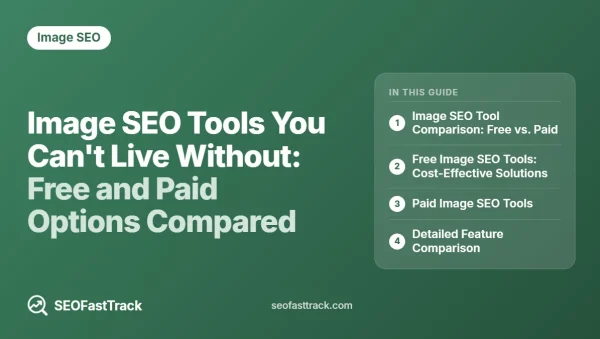
Image SEO Tools You Can't Live Without: Free and Paid Options Compared
Master Image SEO: Best Practices and Optimization for Higher Rankings
Images aren’t just visual flair—they’re a critical ranking factor for your website’s visibility on search engines like Google. When optimized correctly, images can drive organic traffic from Google Images, improve page load speed, enhance user experience, and boost your overall SEO performance. This subcategory of Image SEO focuses on practical, actionable best practices to make every image on your site work harder for you, from file naming and compression to advanced structured data techniques. Whether you’re a small business owner, blogger, or digital marketer, mastering these strategies will help you outrank competitors and deliver a faster, more engaging site.
🖼️ Optimizing File Names and Alt Text for Image SEO
Your image file name and alt text are the first signals search engines use to understand what an image represents. Instead of generic names like “IMG_4521.jpg,” use descriptive, keyword-rich filenames such as “handmade-ceramic-mug-on-wooden-table.jpg.” This helps crawlers index your content accurately. Alt text serves a dual purpose: it improves accessibility for visually impaired users and provides context for search engines. When writing alt text, describe the image naturally, include your primary keyword where it makes sense, and keep it under 125 characters. Avoid keyword stuffing, as this can trigger spam penalties.
For best results, pair your descriptive filename with an equally descriptive title attribute (optional) and ensure your alt text matches the surrounding page content. For example, if your blog post discusses “best ceramic mugs for coffee,” your image’s alt text could be “best ceramic mug for latte art on rustic table.” This relevance reinforces topical authority. Remember, alt text isn’t just for SEO—it’s also used by Google Lens and image recognition algorithms. A well-optimized image can appear in both web search and image search, doubling your visibility opportunities.
📦 Compression and File Format Selection for Speed
Page speed is a confirmed ranking factor, and oversized images are the number one culprit for slow loading times. Compressing your images without visible quality loss is essential. Use modern formats like WebP, which offers 25–35% smaller file sizes than JPEG or PNG while maintaining high quality. For photographs, JPEG with compression levels of 70–80% works well; for graphics with transparency, PNG or WebP is ideal. Tools like TinyPNG, Squoosh, or ShortPixel can automate this process. Aim for each image to be under 100 KB wherever possible, and always specify width and height attributes to prevent layout shifts (CLS), which hurt Core Web Vitals.
Beyond compression, consider lazy loading—deferring off-screen images until the user scrolls to them. This drastically reduces initial page load time, especially on image-heavy pages. WordPress plugins like Smush or Imagify handle compression, lazy loading, and format conversion automatically. Also, serve images via a Content Delivery Network (CDN) to reduce server response time. By balancing file size and quality, you create a faster, more user-friendly site that search engines reward with higher rankings. Remember: a 1-second delay in mobile load time can reduce conversions by up to 20%.
🔍 Leveraging Image Structured Data and Sitemaps
Structured data (Schema markup) helps search engines understand the context of your images, making them eligible for rich results like image carousels and product thumbnails. For e-commerce, use the “Product” schema with image properties; for articles, use “Article” or “NewsArticle” markup. Additionally, every image on your site should be included in your XML sitemap, ideally with a dedicated image sitemap or by adding tags within your regular sitemap. This ensures Googlebot discovers and indexes all your visuals, especially those loaded via JavaScript or lazy loading. Tools like Yoast SEO or Rank Math simplify sitemap generation.
Another powerful tactic is using Open Graph (OG) tags and Twitter Card tags to control how images appear when shared on social media—though not directly a ranking factor, higher click-through rates from social shares indirectly boost SEO. For local businesses, add location-specific images with relevant schema (e.g., LocalBusiness) to appear in local pack results. Regularly audit your structured data using Google’s Rich Results Test to ensure no errors. When done right, structured data can increase your image visibility by up to 30%, driving more targeted traffic from image searches.
⚡ Responsive Images and Lazy Loading Techniques
With mobile-first indexing, ensuring your images are responsive across all devices is non-negotiable. Use the srcset attribute in HTML to serve different image sizes based on screen width, and pair it with the sizes attribute to tell browsers how much space each image will occupy. This prevents mobile users from downloading massive desktop images, speeding up load times. Additionally, implement lazy loading using the native loading="lazy" attribute or a JavaScript library like Lozad.js. This ensures that only images in the viewport are loaded initially, which is a huge win for pages with many visuals, such as galleries or product listings.
Don’t forget to set explicit width and height dimensions on your <img> tags to avoid Cumulative Layout Shift (CLS), a key Core Web Vital metric. For backgrounds or decorative images, consider using CSS background images with media queries, but be careful—these aren’t indexed by search engines unless you add them to your sitemap. Combining responsive attributes with lazy loading reduces your page’s initial payload by up to 40%, which improves user engagement metrics like bounce rate and time on site—both indirect signals that search engines use to assess quality.
🛠️ Internal Linking with Image Anchors and Tracking
Images can be powerful anchor texts for internal linking. Instead of only using text links, wrap your images in hyperlinks to related pages within your site. For example, a product image can link to its detailed category page, and a blog infographic can link to a sibling article. This distributes link equity and makes your site’s architecture more logical. Ensure that the image’s alt text reflects the anchor’s destination for better relevance. Also, monitor your image performance using Google Search Console’s “Performance” filter for Image search. Track which images receive impressions and clicks, then replicate their successful patterns (e.g., specific dimensions, alt text style, or file naming conventions).
Set up a custom report in Google Analytics to track image clicks and downloads if you have image-heavy content like how-to guides or portfolios. Use UTM parameters on image links to measure campaigns. Additionally, check for broken image links using tools like Screaming Frog, as they waste crawl budget and harm user trust. Finally, consider adding captions to images—they’re indexed as text and often include natural long-tail keywords, improving your relevance for image search queries. By treating images as integral parts of your internal linking strategy, you create a cohesive, crawlable site structure that boosts both page and image rankings.
Frequently Asked Questions
What is the ideal image file format for SEO?
For photographs, JPEG is the standard, but WebP is now preferred due to its superior compression and quality ratio. Use PNG for images with transparency and SVG for logos or icons. Always convert to WebP where possible, as it reduces file size by up to 35% without quality loss, improving page speed and user experience, which are critical ranking signals.
How long should alt text be for image SEO?
Keep alt text under 125 characters, which is the typical limit for screen readers. Focus on a concise, descriptive phrase that includes your target keyword naturally. Avoid stuffing multiple keywords or repeating the same phrase across images on a page, as this may be seen as spammy by search engines.
Does lazy loading hurt image SEO?
No, lazy loading is beneficial for SEO when implemented correctly. It speeds up page load time, reducing core web vitals like LCP. Ensure search engines can still access lazy-loaded images by using the native loading="lazy" attribute, which Googlebot supports, or add them to your sitemap to guarantee indexing.
Can I use the same image on multiple pages of my site?
Yes, but it’s better to use different images to avoid duplicate content issues. If the same image appears on multiple pages, especially with similar alt text, search engines may confuse which page is the primary source. If reuse is necessary, use unique alt text and contextual captions for each page.
How can I check if my images are indexed by Google?
Use Google Search Console’s “Coverage” report under the “Images” filter to see indexed vs. excluded images. You can also search your site with site:yourdomain.com and click “Images” to see which appear. Regularly audit your sitemap and use the URL Inspection tool to request indexing for new or updated images.
Related topics